Google Analytics 4 (GA4) is Google’s current analytics platform that uses an event-based data model instead of the session-based model of Universal Analytics. To track organic traffic in GA4, you need to navigate to Reports > Acquisition > Traffic Acquisition, then filter the “Session medium” dimension by “organic.” This shows sessions from search engines, including Google, Bing, DuckDuckGo, and others. Unlike Universal Analytics, GA4 does not automatically separate branded from non-branded organic traffic, so additional configuration is necessary for granular SEO analysis.
Most business owners find the shift from Universal Analytics to GA4 confusing. The interface looks completely different, and familiar metrics like “bounce rate” have been replaced by “engagement rate.” Critically, default GA4 settings often misattribute organic traffic or lump paid and unpaid search together, making it unreliable for SEO decision-making out of the box. Based on direct experience helping dozens of companies migrate, I will explain exactly how to configure GA4 for accurate organic traffic tracking and what to watch for.
GA4 uses events instead of sessions; organic traffic is tracked via the “organic” value in the Session medium dimension under Traffic Acquisition reports.
The default Acquisition report combines all search traffic; apply a Medium > “organic” filter and create a Channel Grouping for clean organic reporting.
Set up Search Console integration within GA4 property settings to see search queries alongside engagement data.
Without a UTM-free branded search filter, GA4 will count traffic from users typing your business name into Google as “organic search,” inflating SEO performance.
What Exactly Is GA4 and Why Did Google Replace Universal Analytics?
GA4 is an event-based analytics system launched by Google in 2020 and made mandatory in July 2023, when Universal Analytics stopped processing data. Unlike its predecessor, which tracked pageviews within a session, GA4 records every user interaction as a distinct event with parameters. A “page_view” is one event. A “scroll” is another. A “click” is a third. This shift matters for SEO tracking because the way Google defines a “session” in GA4 is different: it ends after 30 minutes of inactivity, and any campaign parameters reset the session attribution.
In practice, this means organic traffic definitions changed. Universal Analytics counted a user as “organic” if their first touchpoint was from an unpaid search engine result. GA4 defaults to a data-driven attribution model that may credit multiple channels. If a user clicks a paid ad, then returns organically two days later, GA4 may count the session under “Paid Search” depending on your attribution lookback window. Google’s official documentation on GA4 reporting explains that attribution models are configurable, but the default “Last Click” model might not match your SEO reporting needs.
How Does the Event-Based Model Affect Organic Traffic Reporting?
The event model resets attribution on any new session. This is where businesses get tripped up. Say a user finds your site via a link in a Reddit post (referral), then two hours later they type your URL directly (direct). If they arrive from Google search the next day, GA4 may credit that session as “organic.” That’s technically correct for the last click, but if you are measuring first-touch organic effectiveness, the default report will undercount it.
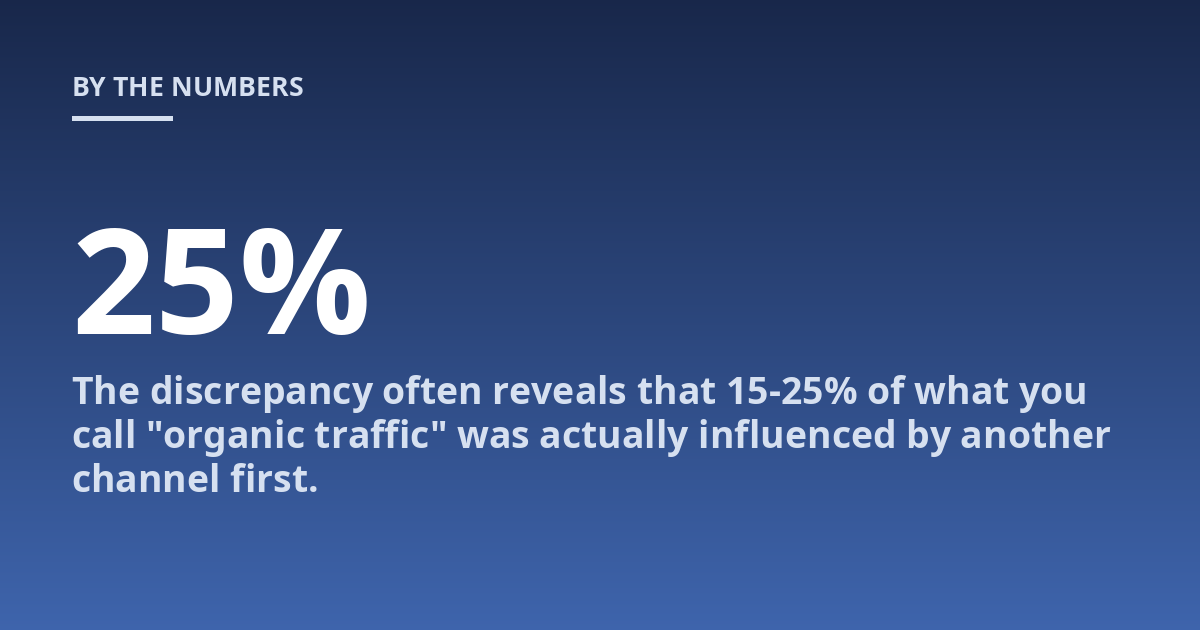
Create a custom channel grouping that defines “Organic Search” as sessions where First User Medium equals “organic.” Compare this against your default Session Medium report side by side. The discrepancy often reveals that 15-25% of what you call “organic traffic” was actually influenced by another channel first. This changed how one client reallocated their SEO budget by 40%.
What Is GA4 and How Do I Track Organic Traffic Using Standard Reports?
Open GA4 and navigate to Reports > Life cycle > Acquisition > Traffic Acquisition. This is the default source/medium report. You will see a table with rows like “google / organic,” “direct / (none),” and “bing / organic.” The “Session medium” column is your filter. Click the pencil icon (customize report), select “Session medium” as the dimension, and filter to only include “organic.” You now have a basic organic traffic view.
But this report has a major limitation: it counts all organic traffic, including branded search. If someone types “TsoDen SEO tools” into Google and clicks your site, that shows up as organic. For SEO measurement, you often need to separate branded traffic (searches containing your business name) from non-branded SEO traffic. GA4 does not offer this natively. You must create an event parameter that checks the full referrer URL for a “utm_term” containing your brand terms, then exclude those sessions from your non-branded organic view.
Practical tip: create a Looker Studio dashboard that pulls GA4 organic session data and Google Search Console query data side by side. Search Console provides the actual queries users typed. GA4 provides behavior metrics like engagement time and conversions. Alone, neither tells the full story. Together, they reveal which queries drive real business value.
What Mistakes Do People Make When Tracking Organic Traffic in GA4?
The most common mistake is assuming the default Acquisition report is accurate. It is not. GA4’s default channel grouping treats “google / organic” as a single line item, but it does not deduplicate sessions triggered by assisted clicks or paid retargeting. A user who clicked a Google Ads ad, then later searched your brand and came back organically, may appear twice in different channels depending on how attribution is set.
Another frequent error: forgetting to set up the Search Console integration. Without it, you cannot see which search queries drove organic traffic inside GA4. Go to Admin > Property > Search Console Links to link your property. Once connected, a new “Google Organic Search Traffic” acquisition report appears that includes query-level data. You can then filter by average position, click-through rate, and impressions directly correlated to GA4 engagement metrics.
We’ve also seen teams block GA4 internal traffic incorrectly. If your own team visits the site via Google search and you do not filter that traffic out using a data layer variable or a known IP address range, you are inflating organic session counts. This is especially problematic for smaller sites where even one internal visit per day can skew monthly data by 3-5%.
How Should GA4 Be Configured for Accurate SEO Performance Measurement?
Start with a clean data layer. Ensure your GA4 implementation sends the correct page location, referrer, and campaign parameters as event parameters. Many tags fail to pass the “page_referrer” parameter correctly on single-page applications or AMP pages, causing organic traffic to be misattributed as direct traffic. Test this using GA4’s DebugView mode before the data reaches your reports.
Next, create a custom channel grouping. Navigate to Admin > Data Settings > Channel Groupings. Build a new grouping called “SEO Organic” with these rules: Source Medium contains “google / organic” OR “bing / organic” OR “yahoo / organic” OR “duckduckgo / organic” OR “ecosia / organic.” Exclude any source medium containing “paid” or “cp.” This grouping now appears as a dimension you can apply to any report.
You should also tag internal site search as a separate event in GA4. Most GA4 setups track “view_search_results” events, but these are not automatically segmented by channel. Create a custom exploration report with “Session medium” as the dimension and “Event name” containing “view_search_results” as the metric. This tells you whether organic visitors use search more than paid or direct visitors, a strong engagement signal for SEO health.
What Metrics Should You Actually Watch in GA4 for Organic Traffic?
Metric
What It Measures
Why It Matters for SEO
Sessions with organic medium
Total visits from organic search
Baseline traffic volume; compare month-over-month
Engaged sessions
Sessions lasting >10 seconds, with a conversion or 2+ pageviews
Indicates content relevance, not just clicks
Key events per organic session
Conversions (form fills, purchases) divided by organic sessions
Measures organic ROI; set up at least one key event
Average engagement time
Average seconds a user actively interacts
Strong correlation with organic rankings, per Google’s own quality rater guidelines
First user medium (organic)
New users first touchpoint was organic search
Tracks new audience acquisition from SEO effort
Track these metrics in a custom exploration report rather than the standard Acquisition reports. Standard reports cap at 50,000 rows and aggregate data in ways that can hide important trends. Explorations allow row-level exports for site-specific analysis, particularly valuable for enterprise sites with millions of organic sessions.
How to Set Up Google Search Console Integration with GA4
Go to Admin in GA4, under Property column, click “Search Console Links.” Click Link, select your verified Search Console property (or properties), then confirm. Within 24-48 hours, a new report appears under Reports > Life cycle > Acquisition > Google Organic Search Traffic. This report shows you search queries, impressions, clicks, and average CTR alongside GA4 engagement data.
You can now filter by query containing specific terms and see how engaged those visitors were. This is where most SEO value lives. For example, you might discover that queries containing “buy” have high CTR but low engagement time, meaning users expected a different kind of page than what you provided. That signals a landing page mismatch you can fix.
If you have not yet set up Search Console, start with How do I set up Google Search Console?. That guide walks you through property verification, submitting a sitemap, and connecting the data to GA4.
One caveat: Search Console shows aggregate data, not user-level. You cannot tie an individual organic search query to a specific user journey in GA4. But for macro SEO decisions, the combined view is indispensable.
FAQ
What is the most important thing to know about GA4 and organic traffic tracking?
The key point is that GA4’s default report structure does not isolate organic traffic cleanly. You must create a custom channel grouping or filter by Session medium equals “organic.” Without this step, your organic traffic numbers will include traffic from other channels and may mislead your SEO performance assessment. A precise reporting setup depends on your specific property configuration and attribution settings. Always start with the Search Console integration to validate that your organic traffic data aligns with actual search query volumes.
When should you discuss GA4 organic tracking configuration with a
When should you discuss GA4 organic tracking configuration with a specialist?
You should consult a specialist if your site has multiple subdomains, uses cross-domain tracking, runs international versions with hreflang tags, or if you maintain a large content library across different URL structures. Also seek help if you need to differentiate branded from non-branded organic traffic, configure custom channel groupings, or set up advanced exploration reports for SEO. A specialist can also audit your data layer and ensure your GA4 property correctly passes referrer parameters on single-page applications.
How do you set up a branded vs non-branded organic traffic filter in GA4?
GA4 does not have a native branded organic filter. One practical method: create a custom event parameter that checks the full page referrer URL for your brand terms. Alternatively, use Google Tag Manager to fire a separate event when the referrer contains your brand name and the medium is organic. Then filter these events out of your non-branded organic view. A simpler approach is to export GA4 data to BigQuery and run a SQL query that excludes sessions where the page referrer or user search query contains brand terms. This requires technical setup but gives you accurate non-branded performance data.
Why does GA4 show more organic traffic than I expected?
Several reasons can inflate organic traffic in GA4. Your own team or contractors might be visiting the site through search engines without being filtered out. Internal traffic should be excluded using a data layer variable for logged-in users or by filtering known IP ranges. Another common cause is bot traffic. GA4 does not filter all bots, particularly those that mimic human browsing behavior. Create a data filter in Admin > Data Settings > Data Filters to exclude known bots and spiders. Also check if your attribution model is counting assisted organic sessions that were originally influenced by another channel.
Can you track organic traffic from a specific search engine in GA4?
Yes. In your Traffic Acquisition report, filter by Source medium for the specific engine. For example, filter to include only “google / organic” to see traffic from Google. You can also create a custom exploration report with Session source as the dimension and Session medium containing “organic” as the filter, then drill into individual sources like “bing,” “yahoo,” or “duckduckgo.” This is useful for understanding which search engines drive the most engaged traffic for your content.
What to Do Next After Setting Up GA4 Organic Traffic Tracking
Once your organic tracking is configured correctly, move beyond raw session counts. Focus on which organic pages drive conversions, not just traffic. Use the Events report to see which pages trigger key events like purchases or form submissions from organic visitors. Build a Looker Studio dashboard that combines Search Console query data, GA4 engagement metrics, and conversion events. Review it weekly to identify content that ranks well but does not convert, and content that converts but ranks poorly.
Set up alert thresholds for organic traffic drops. If organic sessions drop by more than 20% in a week, check Search Console for algorithm updates, manual actions, or technical issues. Use the GA4 Explorations feature to create a segment of users who arrived via organic search and completed a key event. Analyze their behavior path to understand what content drives their journey. This level of analysis is what separates a basic tracking setup from a mature SEO measurement framework.
If you need to track multiple properties or integrate GA4 data with other SEO tools, consider linking GA4 to BigQuery for raw data access. This allows you to run custom queries that GA4’s interface cannot handle, such as cohort analysis of organic users over 90 days or revenue attribution across multiple channels. The setup is technical but unlocks the full power of GA4 for SEO decision-making.